Wednesday, December 10, 2008

Gimp: Levels (beyond the Auto button)

Okay, so we're going back to the Levels tool today to experiment with different ways to use this tool beyond just the "Auto" button.

To start, this where you can download the photo I'll be using in this tutorial if you want to use it to follow along:
www.flickr.com/photos/15059459@N02/3097360115/sizes/l/

After opening the sample photo (or your own), the next step is to open the Levels tool from the "Colors" menu. It'll look like this:
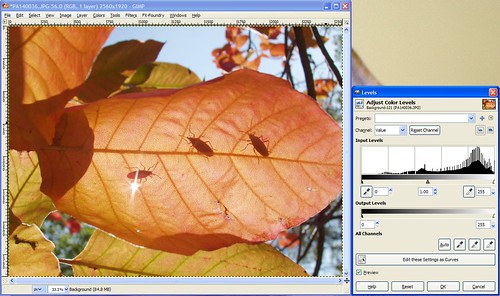
LevelsLeavesB4

Notice we're working with the photo's histogram again, much like the Curves tool. Under the histogram is a tonal graph showing black on the left and white on the right. For this photo we see that there's a big gap between where "true black" is and where this histogram starts, which matches what we see in the photo -it's kinda gray looking and needs to be darkened a bit.

Below the tonal graph are 3 trianglular sliders -one's all the way left at "true black", one's all the way right at "true white", and one's right in the middle. If you click on those triangles you can slide them left or right and it'll change the brightness of the dark tones, light tones, or mid-tones (depending on which slider you move) in your photo accordingly.

Since we want to make the dark tones darker, we can think of that as wanting to shift the histogram left. To do that, we move the "true black" slider to the right where we want "true black" to be for our histogram. So, go ahead and move the slider on the far left until you get it where the data begins on the left side of the histogram. It should look like this:
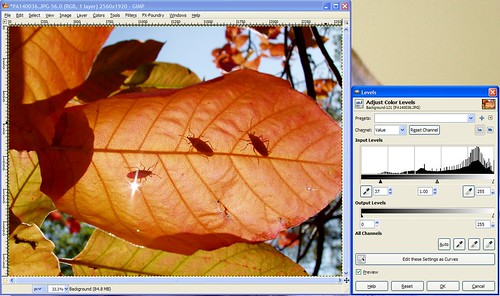
LevelsLeavesAfter

That's good enough for me, but I encourage you to play with the mid-tone and "true white" slider to see the effect they have on the photo as well.


To be completely honest, I rarely use Levels this way. Curves will achieve the same result, just in a different way. Most people like either Curves or Levels (usually Curves I think because it's a little more granular) and they stick with the one tool the majority of the time.


Now, there's another way to use Levels, and I use this more often than I do the manual adjustment I went through before.

Next to that "Auto" button that we used in Exercise #4 there are three buttons with icons that look like eye droppers. One is black, one's gray, and one's white. The idea here is that you can click on the black dropper and then click on an area in your photo that should be 100% black and it'll automatically adjust your photo to make that so. White works the same way -click on the white dropper, then an area that should be 100% white in your photo, and whallah! The gray dropper is used when you're using a gray card -you'd click on the gray dropper, then the gray card, and you'd get good results that way (I never use a gray card, so I don't use that dropper at all).


So try this tool out all three ways -the "Auto" button, the droppers, and the manual adjustment and please post any questions you have about anything you don't understand about the Levels tool. Also feel free to post your results using this tool, I enjoy knowing if these tutorials are useful for you!

Wednesday, December 3, 2008

Gimp: The Curves Tool

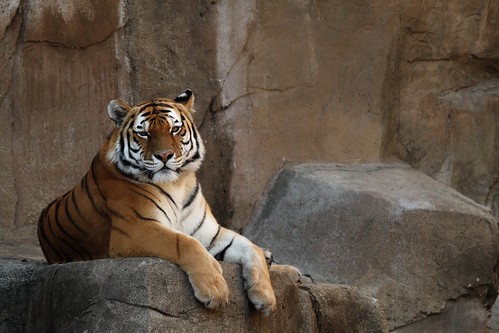
For this exercise we'll be using this photo:

Tiger, before

Feel free to download the photo here if you'd like to follow along with the exercise.

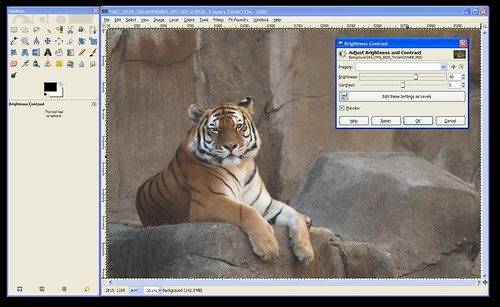
The problem with this photo is that it's dark, so the logical thing we might thing of to do would be to bring up the "Brightness/Contrast" tool (from the "Colors" menu) to fix it like this:


CurvesBrightness

...but notice how increasing the brightness on the photo brightens the WHOLE photo leaving it looking dull and gray?

In this case, we want to brighten the white parts (the highlights) and the tiger's body and the rocks (the mid-tones) without brightening the darkest parts of the photos (like the shadows and his black stripes). The curves tool gives you the ability to brighten or darken the highlights, shadows, and mid-tones seperately. So, let's open it up!

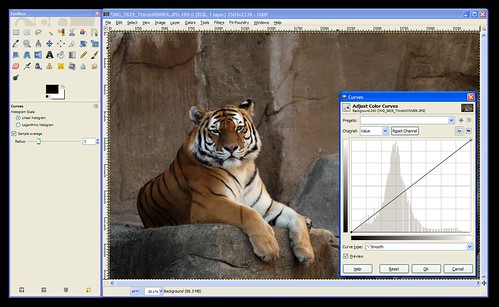
The Curves tool can be found under the "Colors" menu. When you open the tool it'll look like this:

CurvesToolOpened


The Curves tool consists, mainly, of a graph. In the background is the histogram for your photo. If you don't know how to read a histogram, go back and read An Intro To Histograms right now because it's an important part of the curves tool.

Notice that the graph's "x-axis" (the horizontal part) is labelled (on the bottom) with a range of tones than go from black on the left to white on the right. Similarly, the "y-axis" (the vertical part) is labelled with white on the top and black on the bottom.

The histogram shows you the tones that comprise your image. In the case of this tiger photo, we can see that there are some dark tones, lots of mid-tones, and some highlights. Nothing's been over or under-exposed, so no detail is unrecoverable from the shadows or from the hightlights.

When the tool is first opened the line on the "curve" is actually a straight line that runs at a 45-degree angle from the blackest black on the graph to the whitest white. This is where all images start. If you click on this line you can pull it up or down. This is how you use "Curves".


Now, the first thing to consider is the portion of the curve that you want to pull up or down. Clicking towards the left will change the darker tones. Clicking towards the right will change the lighter tones. You can use the histogram to decide where to click or you can use the dropper tool to help you decide.

To use the dropper tool, simply hover your mouse over the photo while the Curves tool is open and click on the area you want to lighten or darken. In this case, click right between the tiger's eyes so we can see where we need to click on the "Curve" to brighten the darker areas of the tiger.

This will put a vertical line on your graph to show you where that tone that you clicked on lies on the x-axis of the graph. So, we now know that we'll need to click in that approximate area of our "Curve" (the 45-degree line).

Next, we need to decide if we're going to move it up or down. According to the label on the side of the graph pulling up will lighten the photo (bring the tones towards white), and pulling down will darken the photo (bring the tones down towards black).

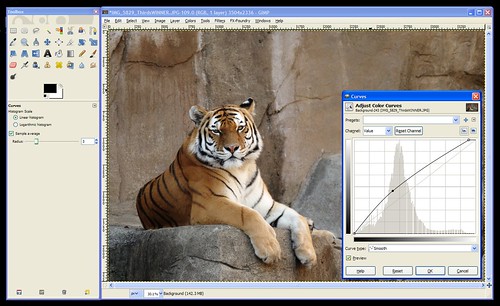
We want to lighten this photo, so click the "Curve" (the 45-degree line) where the vertical line meets it and drag it up until it looks about right to you. When you have it where you want it let go of the mouse button to set that point on the curve.

At this point, your "curve" (graph) should look something like this:

CurvesUse


One more problem remains -notice that the histogram shows the data going down to nothing way before it reaches the right side of the graph? This means that my "whites" (the tiger's face and chest) aren't as white as they could be. To fix this you can either click the whitest part of the tiger to get that vertical line to show you where these tones are on your "curve" or you can just look at where the data ends and click somewhere close to that area on the curve. Then pull that point up to the very top to make it pure white. (This part was already done on the screenshot above.)

Click "OK" to apply the changes to the photo and you're done!


I'm going to go through one more example really quick so you can see another common curve: an "S" curve.

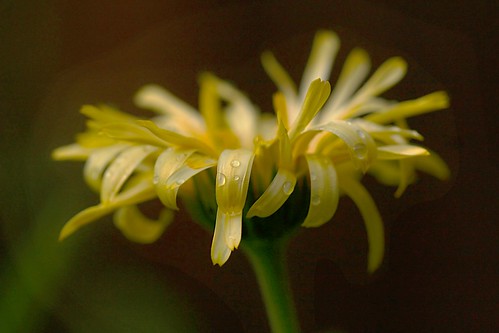
Here's the example photo we'll use for this one:

CurvesFlowerB4

Download full size here.

You'll notice in this photo that the background needs to be darker, and the flower is a bit gray and needs to be made brighter.

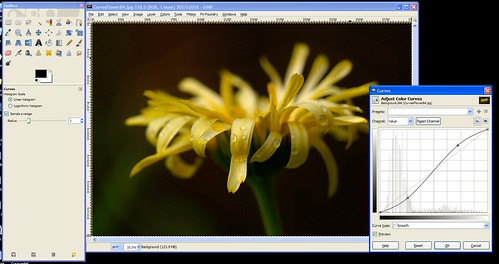
So, we'll open curves and bring the darks down darker and the highlights up brigher. The resulting curve looks like an "S" as shown here:

CurvesFlowerCurved


Hopefully that gives you a good idea about how to use the "Curves" tool. This tool will allow you to manually do what the "Auto-Level" did for our photos in Exercise #4. If Auto-Levels doesn't work for you, you should be able to fix your photo manually in Curves.


As always, feel free to post your questions, tips for using Curves, or the results you've gotten with this tool here.

Tuesday, December 2, 2008

Intro to histograms

Digital SLR owners (and perhaps some digital point and shoot's as well) have the ability to view photos they've taken along with something called a "Histogram". This article will explain what a histogram was and how it can be used to improve your photography.

What is a histogram?

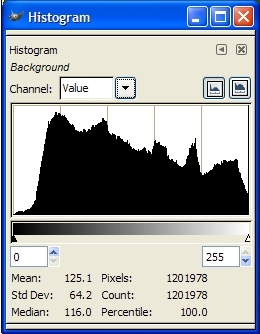
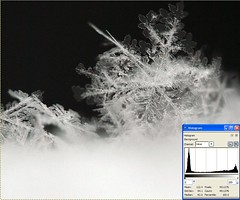
Well, it's a graph, so let's start with an example: (Click on the photo to view a larger version.)

Below the graph, you can see the key, which goes from black all the way on the left, through all the shades of grey until it gets to white at the right-hand side.

So, the graph represents the data in the photo broken down to show how much of the data is of dark, light, or one of the shades of grey in-between.

Does that mean it only works for black and white photos?

No, the histogram works for color photos as well. It's more about "tone" dark red and dark blue are both treated the same (as "dark")... You can think of it as the camera converting the color to black and white to create the histogram if it makes it easier for you to conceptualize.

So, what does this information tell you?

Well, when you review a photo on the LCD screen of your camera it's hard to tell if your photo is too light or too dark because the brightness of your LCD is adjustable. So, how do you know if your photo is dark or if the LCD brightness just needs to be increased because you're outside in sunlight and your LCD was adjusted indoors? The lesson: Looking at the histogram is much more accurate than looking at the photo on your LCD.

What we are often most concerned about when it comes to exposure (how light or dark the photo is) is to make sure that we didn't over-expose or under-expose the photo to the point where we lost detail in the highlights or shadows. We can tell if we've lost detail in the shadows because the data on the histogram will go off of the far left of the graph (the black part), or if detail was lost in the highlights, the photo the data will go off the right side of the graph.


Practical use:

So, let's look at that sample histogram at the top of this article -what does it say about the photo it was taken from?

See how the graph ramps up slowing from the left? that means that there's very little absolute 100% black pixels, so there's no detail loss in the shadows. Now, look at the right side -it doesn't peter off as slowly on the right as it did on the left does it? Instead, it abruptly gets cut off. That means there's a lot of 100% white pixels, which means there was some detail loss in the highlights.

It's easy to assume that histograms that fall off of either side are "bad", but that's not the case. It's important to consider the photo you've taken when looking at the histogram because sometimes under or over-exposed areas are ok. (If you're using a white background and you want it to be blown out for a "high key" look, for example.)


Examples / Practice:

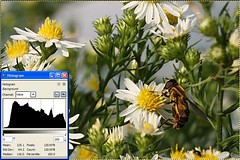
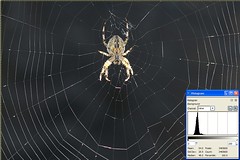
Here are some example photos along with their histograms so you can get a better feel for how to read a histogram: (click the photos to view the large version).

A photo showing a wide range of tones (slightly overblown):

"Full spectrum" histogram


A photo with the majority of it's data in the dark area of the histogram:

"Lots of dark" histogram

A photo showing a lot of over-exposure in it's histogram:

"Lots of white" histogram


A photo showing a lot of dark and light areas without much in-between (grey):

"A lot of dark, a little gray, and more white" histogram


Links:

For further reading, see: http://www.luminous-landscape.com/tutorials/understanding-series/understanding-histograms.shtml

..and here's a reason you may want to intentionally over-expose your photos by a little bit. (VERY interesting): http://www.luminous-landscape.com/tutorials/expose-right.shtml

Monday, December 1, 2008

Using Auto-Level to fix dull, gray-ish photos

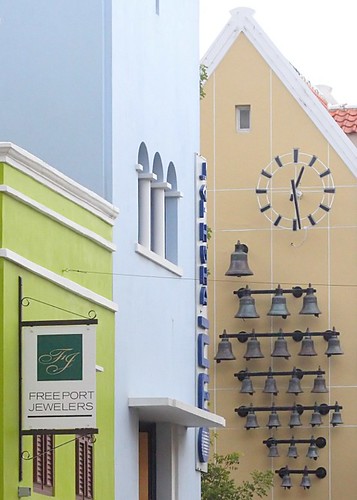
One of the most common issues I see in photos on Flickr is a dullness -a hazy gray look to images. This is often very easy to fix. We'll use Auto Levels to fix the dullness seen in this photo:

CuracaoBellsLevelsExercise

Feel free to download this photo at it's full size here to follow along with the steps to fix it:
www.flickr.com/photos/15059459@N02/3074716327/sizes/o/

After downloading the photo, open it in Gimp. Do you immediately notice the dullness or hazy look to the photo? If not, that's ok. Over time it'll become more obvious to you.

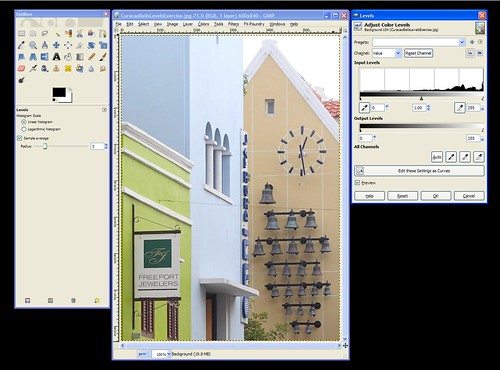
Find and click on the "Colors" menu and then choose the "Levels" tool. This will open up a new window as seen here:

CuracaoBellsLevels

There's a lot of options in the Levels window, and we'll go over them all later. For now, just find the "Preview" checkbox towards the bottom and make sure that it's checked. This will change the look of the photo immediately when we make changes to it with the tool. If "Preview" is not checked you won't see your changes until you apply them by clicking on the "OK" button.

After making sure "Preview" is checked, click on the "Auto" button and watch how the photo changes. If you miss it you can click on the "Reset" button to undo the change so you can redo it.

See how the dullness is immediately fixed with Auto - Levels? The bells in particular go from dull looking to dark, as they should be. Click "OK" to apply the change to the photo permanently (what you see is just a preview, so hitting "Cancel" will cancel the change and the photo will go back to the way it was before you made the Levels change).

That's it for this photo -we're done!


When I first found out about this tool I did an Auto-Level on every photo I took because sometimes it made a huge difference even if I thought the photo looked good before using it. The more I used it the more I became aware of that dull cast in photos and could anticipate whether an Auto-Level was needed or not. I encourage you to try Auto-Levels on your photos to see what a diffence it can make. Sometimes it will make no difference, sometimes it'll make the colors in your photos go wacky and you won't want to use it. But, many times it can have a positive effect, so it's worth a shot!

Friday, November 28, 2008

Gimp Basics

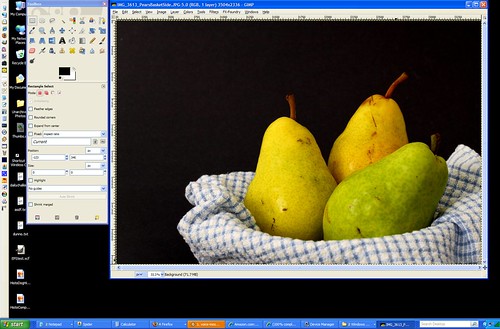
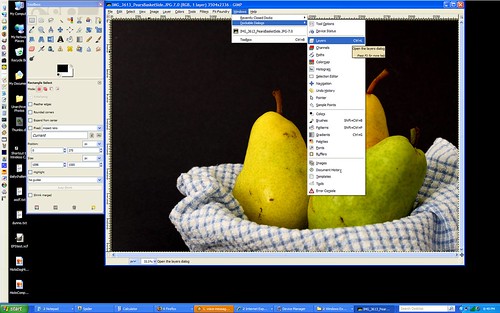
When you open Gimp for the first time you'll get 2 seperate windows, the toolbox window is the one with all the little icons all over it; the image window is the one that's mostly gray with the menus at the top ("File", "Edit", "Select", etc).

GimpOpen

-------------------------------------------------------------------------------------

If you go to the "File" menu and open one of your photos it'll look like this:

GimpImageOpened

---------------------------------------------------------------------------------------

There are many other windows you can open to help you with certain tasks as well. They are usually hidden by default so that they don't get in your way, but you can open them at any time in the "Windows" menu, under "Dockable Dialongs":

GimpWindows

------------------------------------------------------------------------------------------

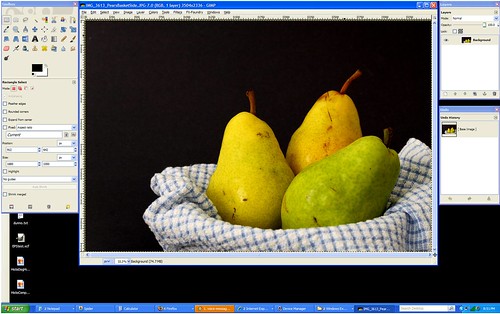
The optional windows I use most are "Layers" and "Undo". Here's how I arrange all the windows on my screen so I can get to everything easily:

GimpLayersUndo

----------------------------------------------------------------------------------------

All of the windows can be moved around and arranged however you want. To move them, click on the top of the window in the colored area (blue on my screenshots) and drag them wherever you want them. ("Drag" by holding the mouse button down while moving the mouse.)

Sunday, November 9, 2008

How to create a vignette effect in Gimp

Vignette is that effect you sometimes see where the corners of a photo are a little darker than the rest of the photo. Here's an example from Aaron Escobar's photostream on Flickr (click on the photo to go to the Flickr page):


Here are the steps to create this effect in Gimp:
* Go to the "Layer" menu and choose "New Layer" -make sure the default layer type of "Transparency" is selected, then select "Ok".
* In the toolbox, click on the Ellipse Select Tool and set the Feather edges to "100" (push the slider all the way to the right).
* Select the area where you want the vignette effect to end.
* When the area is selected, go to the "Select" menu and click "Invert" -this will select everything OUTSIDE of the circle instead of the circle itself.
* Click on the Bucket Fill Tool from the Toolbox. Make sure black (or whatever color you want your vignette to be) is selected, then click in the selected area to fill in the color.
* Adjust the layer's opacity to make the vignette go from black to more "see through" -by changing the opacity you can make it as dark or light as you choose. (The "Layer" window can be opened by clicking on the "Windows" menu, then going to "Dockable Dialogs" and selecting "Layers".
* Chances are the transition between the vignette and your photo is a bit more abrupt than you'd like it to be. That's ok we can make it more gradual...
* Click on the "Filters" menu, go to "Blur" > "Gaussian Blur".
* Move the blur radius up from the default "5" to somewhere around "150" depending on the transition you are looking for.
* When it looks good, flatten the image and save it and you're done!

Friday, November 7, 2008

Pay attention to the lessons all around you!

There are billions of people around the globe who take pictures. There are hundreds of millions who give honest effort to taking GOOD pictures. There are millions who'd love to be professional-level. So, what separates the people who get stuck in the "better than average but not great" category from those who really excel? I follow many successful photographers who got their start online. They all shot often, found inspiration everywhere, and tried new things.

Here's an example:
http://strobist.blogspot.com/2008/11/vote-and-consider-uplighting.html

...how often do you notice such things? There are photos everywhere you look: in advertisements, magazines, on the walls of restaurants. Look at those photos! Compare them to your own! Figure out where the light was coming from (from looking at the highlights and shadows), how the items or people were arranged, the angle of view, the framing, the background and depth of field, etc. Every photo is a learning opportunity if you're really passionate about your art and paying attention.