Tuesday, January 10, 2012

Carrying a camera at all times

Many photographers carry a camera with them everywhere they go so that, whenever a photo opportunity presents itself, it can be captured.  For beginning photographers this is good advice.  Beginners can get plenty of practice at trying new angles and perspectives to learn to compose a shot well, or even just learn what makes an interesting image..  But as you become a better photographer you start seeing less and less “keepers” coming from these happened upon photo opportunities.

The reason the good photos fall off as your photography gets better is that there comes a time when you've made all the big leaps in learning how to improve your photography from the camera side and you start finding that something called "quality of light" is what makes others’ photos better than the ones you’ve been taking.

 
Quality of light is what makes landscape photographers get up before sunrise to catch the warm light of sunrise on a hillside, tree, or rocky cliff.  It makes macro photographers hope for an overcast day, and makes architectural photographers get ready just before dusk to capture that magically blue sky balanced perfectly with a building's inside or outdoor lighting.  In short, it’s the exact opposite of happening across a shot.  A lot of planning and forethought go into capturing photos with the best possible (natural) lighting.  

 
When this realization is made it's easy to decide that photography is work and that simply carrying a camera around and keeping an eye out for photo ops won't yield any significant successes.  In fact, that's what this blog post was going to be about.  The fact that good photography takes work and planning.  But I didn't finish the post, so I left it in draft form to finish later.  Then on Saturday I ended up proving my post wrong when i came across the scene below and was happy I had my camera with me so I could capture it:
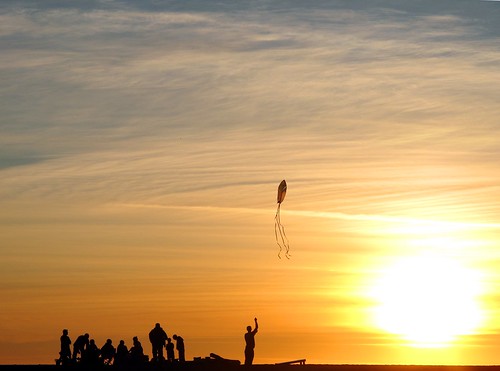

Beach Sunset
 

So, I'll leave the question of whether or not to carry a camera at all times to the reader while noting that you can increase your chances of getting good shots by paying attention to the quality of light and shooting accordingly.  If you see a sunset, it's instinct to shoot it, but make sure you turn around too and see if the warm light isn't putting your best shots behind you.  Make the best of an overcast day by focusing on macros, and use the twilight hour to concentrate on architectural photo opportunities.

Saturday, December 17, 2011

Tuesday, September 13, 2011

Getting everything in-focus in an image.

Let's start by defining two terms:
-Shallow depth of field:  when only a small portion of the photo is in focus and everything in front of or behind the focus point is blurred.  Example:  http://www.flickr.com/photos/erica_marshall/852785112/in/set-72157625599893745
-Deep depth of field:  when a lot (or all of) the photo is in-focus and nothing is blurred due to being in front of or behind the focus point.

Two things work together to determine your depth of field:  where you focus, and your aperture.
-Low-numbered (aka "large" or f/4 rather than f/16) apertures give you a more shallow depth of field.
-High-numbered (aka "small" or f/16 rather than f/4) apertures give you a deeper depth of field.

But, the distance from the camera to where you focus also matters. 
-The closer to the camera that you focus, the shallower the depth of field at a given aperture.
-The farther away from the camera that you focus, the deeper the depth of field at a given aperture.

So, to get an infinity focus (or close to it) you need to focus far from the camera and use a high-numbered aperture.  If you aren't using Manual modes yet, then choosing the "Landscape" Auto mode on your camera (icon usually looks like mountains) and a distant focus point will get you similar results.

The sweet spot seems to be about a third of the way into the distance in your image -if you focus there (in a landscape) you should get about infinity focus.  But please note that macros and studio shots are different since the focus point is so much closer to the camera, it is often impossible to get infinity focus without taking several pictures with different areas in focus and then stacking them in software after the fact.

Wednesday, June 8, 2011

Black and white conversion

The easiest way to convert a photo to black and white is to choose the menu item or button in your imaging software that just converts it for you. In Gimp 2.6.3 you find this under the "Colors" menu and it's called "Desaturate". But like many other things in photography, the easy way isn't always the best way to go about things.

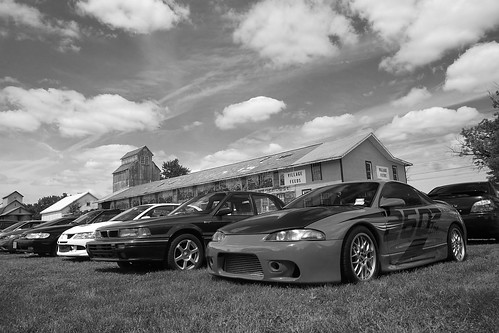
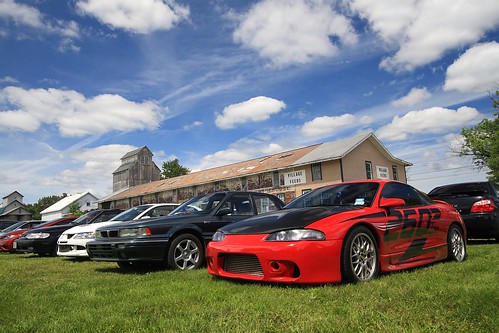
I'm going to use this photo as an example for two different ways to do black and white conversions. I use Gimp, but these different techniques will work in Photoshop and many other programs as well. Here's the photo we'll be working with for this article

Car Show

First, I'll show you what you get when you just "Desaturate" or do an auto color to black and white conversion

Example D

This isn't a bad black and white conversion, but the car ends up being a shade of gray that's very close to that of the grass, so it doesn't stand out well. The barn is a lighter shade too that blends in with the sky rather than standing out. So, let's talk about how Channels can help us get a better result.

Back in the day black and white photographers would carry filters with them that were red, green, or blue to adjust what colors would appear darker or lighter. Channels works in much the same way. This requires a little thought at first, but with some practice it becomes second nature. (And it's always fine to just play with the Channel controls until you like the way it looks too.)

If you put a red filter on the camera it blocks red from being recorded on the black and white film. This means that red blotchy skin is much less noticeable when a red filter is used. A red filter also darkens the color blue, so if you are shooting landscapes and you want a dramatic dark sky you can use a red filter as well. Let's make a table of the filters' effects to make this easier to use as a reference:

Red:
-makes red lighter
-makes blue darker

Blue:
-makes blue lighter
-makes green darker

Green:
-makes green lighter
-makes red darker

So, how does this relate to Channels? Channels adjust the amount of red, green, and blue used in the photo. This means that, effectively, Channels work like a filter does in black and white film photography. In fact, in Gimp (and I assume in Photoshop and other software), Channels will also convert to black and white at the same time that you adjust the amount of red, green, or blue. In Gimp this is done via a "convert to monochrome" checkbox. (The Channels tool in Gimp is under the "Colors" menu, then "Components", then "Channel Mixer".)

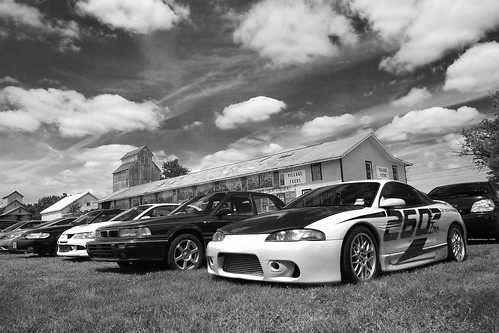
On to examples! Here is the photo using 100% red (the equivalent of using a red filter in black and white photography):

Example R

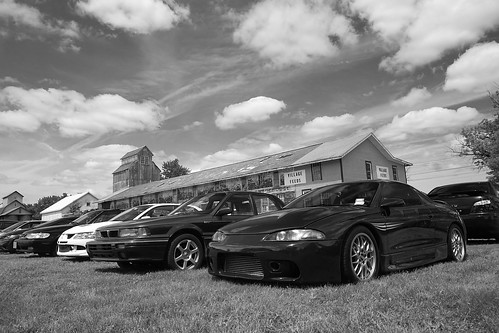
I like this result a lot! But, just to make sure this is the best one let's check out 100% green:

Example G

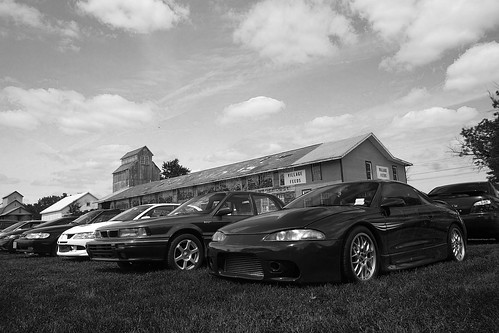
Check out the difference in the color of the car between these two photos! Pretty impressive, huh? Now let's see what 100% blue looks like:

Example B

See the difference in the look of the grass in this one? I think red's my pick for this photo. But, unlike the days of film where you'd have one of the 3 filters to choose from, nowadays you have more flexibility than you may even want! You can choose 75% red, 25% green or 80%-20%-20% or any combination you think looks the best. So, give it a try and gain a lot more control over the outcome of your color to black and white conversions!

Monday, February 14, 2011

New quicklinks!

For those who subscribe to this blog, I apologize for the last few posts tonight, but they are part of a huge improvement for navigating the articles here on the Muddyboots Photography Blog!

For the last 6 months or so it's become more and more obvious that finding the information you want on this blog can be frustrating at times, but I think I made great strides tonight with my "Quicklinks"!

Now you can simply click on your topic of interest on the top right side of this blog (under the donate button -hint, hint!) and get all the articles on that subject right away. No sifting through labels or tags required. It should be quick and easy!

So, check them out, let me know what you think, and stay tuned as I fill in some of the gaps of knowledge that I found while compiling these quicklinks. More articles will be coming soon!

Quicklinks for: Flash

Quicklinks for: Photography Equipment

Cameras:

Lenses:
Other equipment:
DIY